What it does
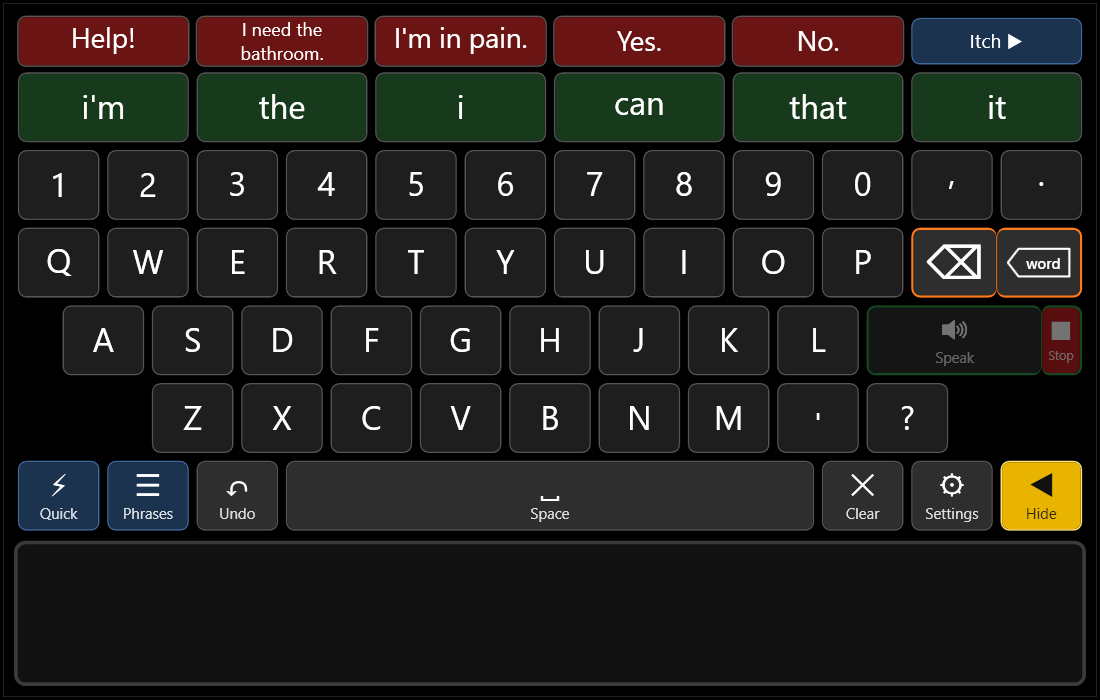
Big keys
A large on-screen keyboard. Every key is the same size, and nothing jumps around while you type.
Suggests words
Six word suggestions above the keys. The more you use it, the better they fit how you talk. (What it learns stays on your computer, encrypted, and can be switched off. How the learning works.)
Urgent phrases, one press
Help!, I need the bathroom., I'm in pain., Yes., No. Change them to your own.
Real-sounding voices
Lots of free voices to choose from. Each one downloads once, then works without the internet.
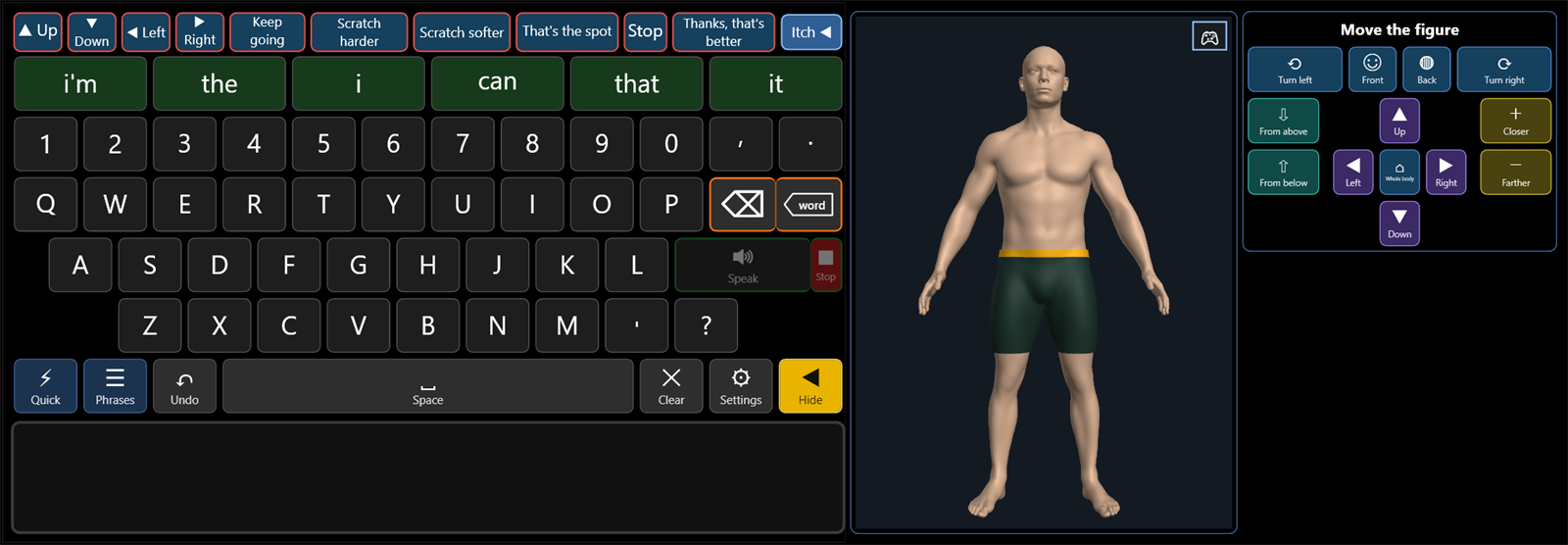
Show where it itches
Click the spot on a 3D figure and BetterTalk says exactly where, like "my left inner thigh, just above the knee".
Turns other sounds down
Anything else playing on the computer gets quieter while BetterTalk talks, then goes back to normal.
Who it is for: people who use Windows with limited movement and want a quick way to speak, and the family and carers who set it up. What it is not: a medical device, a replacement for a dedicated speech device, or an app for phones, iPads or Macs (Windows 10 and 11 only, for now).
How to install it
- Download it with the green button above. Your browser saves a file called BetterTalk-Setup.exe, usually in your Downloads folder.
-
Double-click that file. Windows will probably show a blue box like this one:
Windows protected your PCMicrosoft Defender SmartScreen prevented an unrecognized app from starting. Running this app might put your PC at risk.More info
Click More info. A Run anyway button appears: click it.
This box is not a virus warning. Windows shows it for any new program from a maker it does not know yet, because BetterTalk is not signed with a paid certificate. Why it is safe.
- Click Install. No administrator password is needed. BetterTalk opens by itself and puts an icon on the Desktop and in the Start menu. A short set-up guide (about a minute) asks a few questions; you can skip it and change everything later in Settings.
The program starts with the standard Windows voice. To pick a more natural one, open Settings → Voice & speaking: each voice downloads once and then works with no internet.
To remove BetterTalk: Windows Settings → Apps → Installed apps → BetterTalk → Uninstall.
Getting new versions
In BetterTalk, open Settings → Updates → Check for updates. It shows what is new and offers to update. Your buttons, settings and learned words are always kept, and you can go back to the version you had. BetterTalk never updates or goes online by itself.
Is this safe?
- Free, with nothing to sign up for. No account, no ads, no payments.
- It stays on your computer. No cloud and no tracking. It never records audio. It only uses the internet when you download a voice, press Check for updates, or send feedback. What it learns about your words is stored encrypted on your own PC.
- No AI chatbots. BetterTalk has no connection to ChatGPT, Gemini, Claude or any other AI model. Word suggestions come from a plain list of common words plus the words you use.
- Open for anyone to check. All of its code is public, and each installer is built automatically by GitHub from that public code, not on someone's own computer.
- You can check your download. Each version lists a checksum, a code that only matches the real file. For version 0.4.2 it is 2df1ec4c8a651fdaa4a0b35558a39cd3adb283a9b36960cb11ee32f56a1e024d. To check yours, open PowerShell in the folder where you saved the file and type Get-FileHash .\BetterTalk-Setup.exe: the number must match.
- Why Windows warns about it. Signing a program costs money every year, and BetterTalk is free. The blue box is about an unknown maker, not about anything found in the file.
This page has no cookies, no trackers and no ads either.
Tell me what goes wrong, or what would help
The easiest way is from inside BetterTalk: open Settings → Updates → Send feedback (or right-click the BetterTalk icon near the clock and choose Send feedback to the makers). Type your message with BetterTalk's own keyboard and press Send feedback. No account or email is needed. Only your words, the BetterTalk version and the Windows version are sent.
It helps to say how you control the computer (QuadStick, switch, mouse, eye tracker) and what happened just before the problem. Please never include anything private that was typed or said.